Administrative Templates in GPO: Visibility, Central Store, аnd Hidden Risks
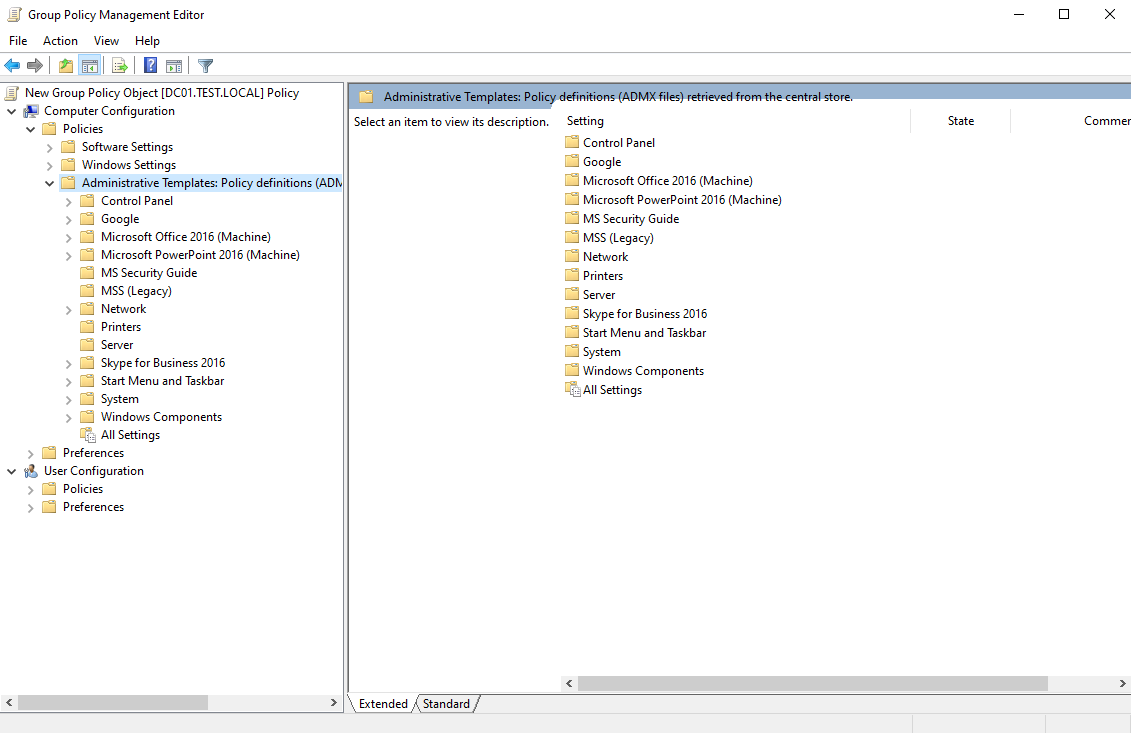
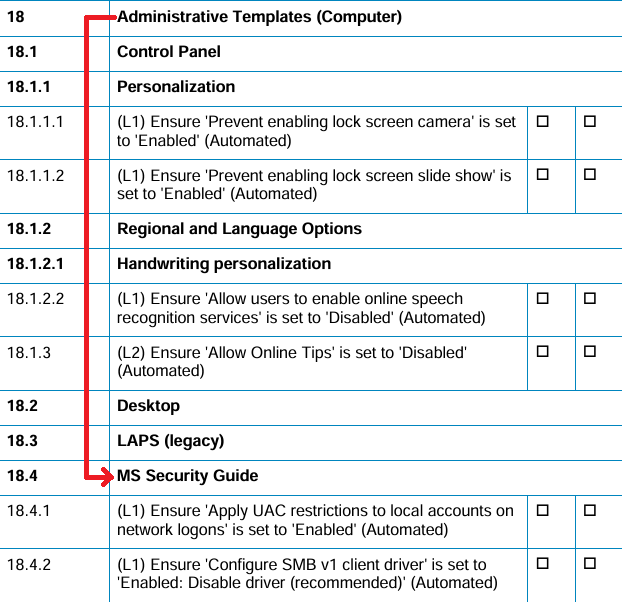
Sometimes, when working with CIS Benchmarks for Windows, a particular security control may be missing in GPMC.
At first glance, the conclusion might be simple: “Not applicable. Move on.”
And that would be a mistake.
The problem is not in Windows. And it is not in CIS. The problem lies in Administrative Templates.
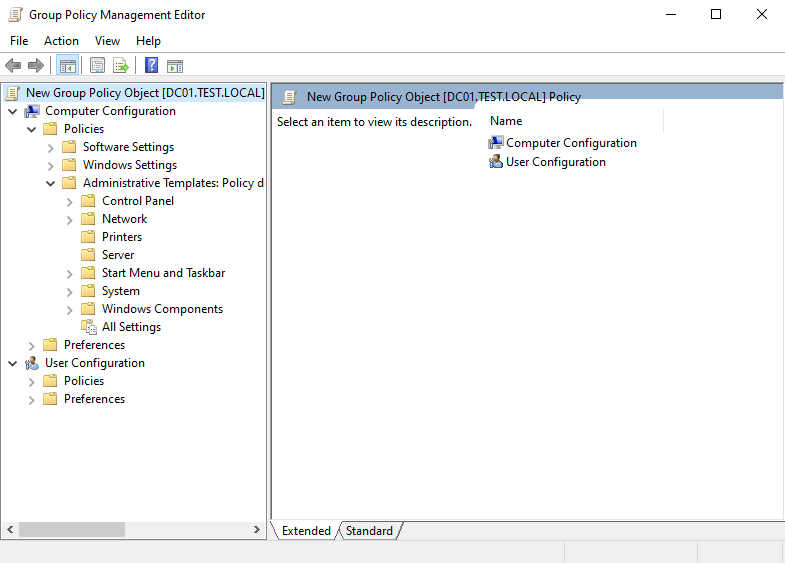
If a domain uses a storage location with a partial or outdated set of ADMX files, entire categories of policies may simply not appear in GPMC. No warnings. No errors. They are just absent from the interface.
From an audit and security perspective, this creates a dangerous effect:
– a false sense of compliance,
– a false sense of correct configuration,
– and, as a result, an uncontrolled attack surface.
Using an up-to-date and centralized set of Administrative Templates is a mandatory step when hardening Windows.
In this article, we will examine the architecture of Administrative Templates, how ADMX files work, and common mistakes in their use within a domain infrastructure.
What Are Administrative Templates?
Administrative Templates are a Group Policy mechanism that allows centralized management of operating system and application settings through the Windows registry.
Administrative Templates do not contain applied settings and do not store policy values.
They are a set of XML-based templates (ADMX) that define:
– which parameters can be configured,
– which values are allowed,
– which registry keys are modified,
– how these settings are displayed in GPMC.
The mechanism is built on two types of files:
– .admx – policy definition (structure, registry paths, logic),
– .adml – language resources (names and descriptions).
ADMX defines the logic.
ADML defines the presentation.
If an ADMX file is missing, the corresponding policy will not appear in GPMC.
If the ADML file for the current locale is missing, the policy may display incorrectly or not appear at all.
The number of available parameters directly depends on the version and completeness of the ADMX set used in the domain.
If the storage contains outdated or incomplete templates, GPMC will display only part of the available operating system settings.
What Are Administrative Templates?
Administrative Templates are not hard-coded into Group Policy. They are loaded from the file system, and their storage location determines which parameters are available in GPMC.
By default, ADMX files are stored in:
C:\Windows\PolicyDefinitions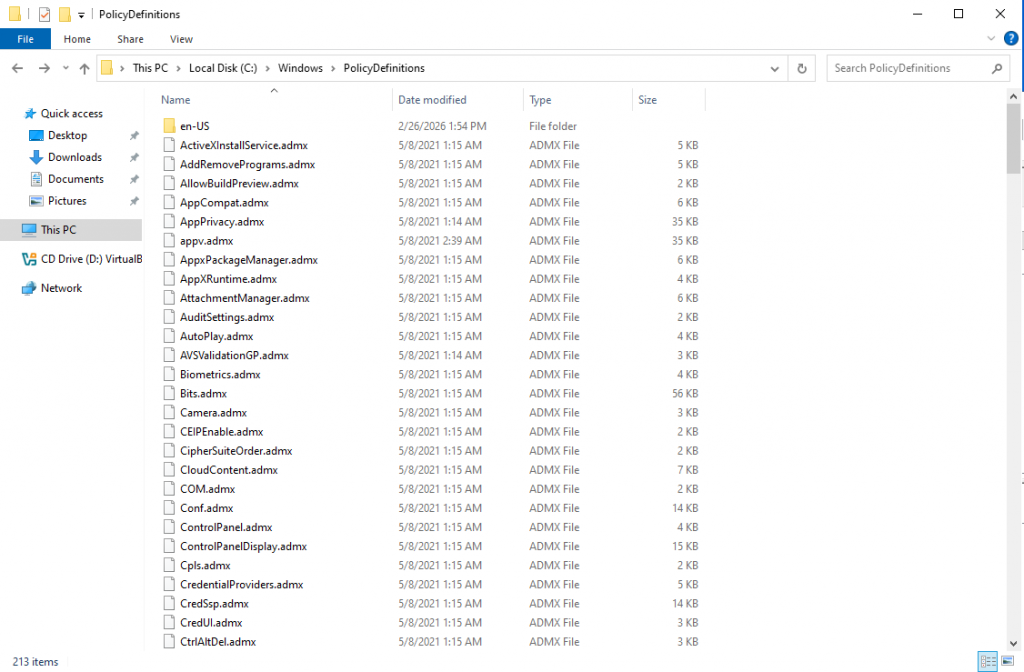
If the domain does not use a Central Store, GPMC relies on this local directory.
This means that different administrators may see different sets of policies. The ADMX version depends on the OS version of the machine where GPMC is launched, which can result in inconsistent policy visibility.
In small environments, this may not be critical. In corporate environments, this is a risk.
To ensure consistency, a Central Store is used. It is located in SYSVOL:
\\<domain>\SYSVOL\<domain>\Policies\PolicyDefinitions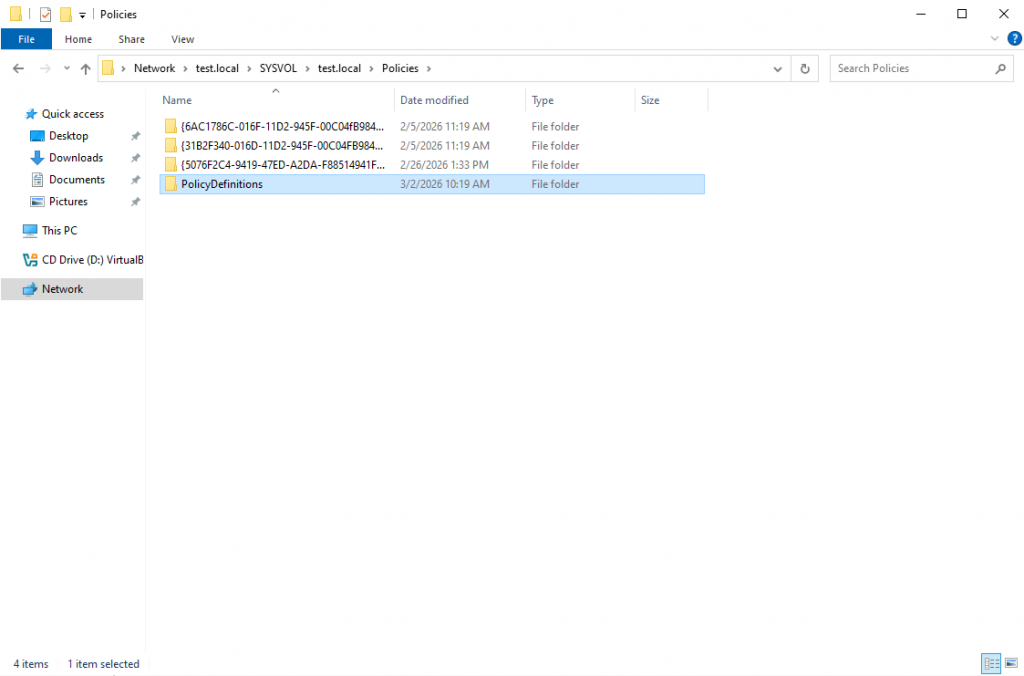
If the PolicyDefinitions folder does not exist, it must be created manually.
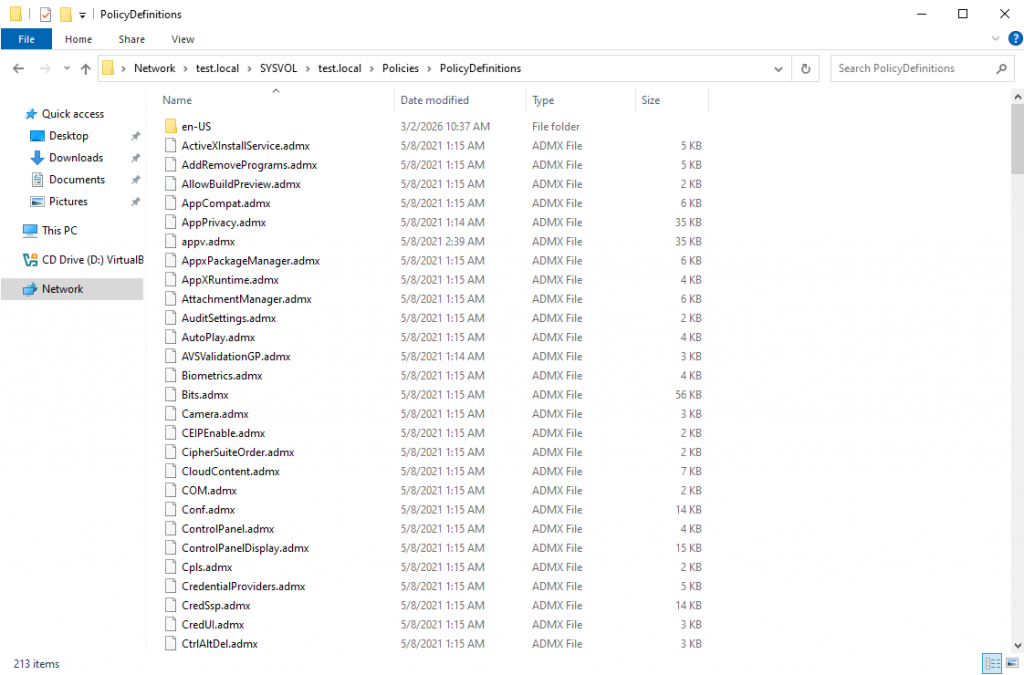
Inside it, .admx files and language directories (for example, en-US) containing .adml files should be placed.
Central Store ensures a unified set of displayed policies for all administrators.
Without a Central Store, one administrator may see a required policy while another may not, even though both are working in the same domain.
Extending Administrative Templates
Extending Administrative Templates in a domain environment essentially means managing the set of ADMX files used by GPMC.
ADMX files are updated alongside new Windows releases and are published by Microsoft as separate packages.
It is important to consider:
– the ADMX version should not be lower than the newest OS version used in the infrastructure,
– when implementing new Security Baselines, ensure that the current ADMX set supports the required parameters.
The official ADMX package includes:
– the core set of .admx files,
– language folders (e.g., en-US, es-ES) with .adml files.
Updating the Central Store
Before updating, it is recommended to:
1. Create a backup of the current PolicyDefinitions folder.
2. Copy the new .admx files to:
\\<domain>\SYSVOL\<domain>\Policies\PolicyDefinitions3. Copy the corresponding .adml files into the appropriate language folder (e.g., en-US or ru-RU).
4. Restart GPMC.
After that, the updated set of parameters will be available in Administrative Templates.
Adding Third-Party Administrative Templates
Administrative Templates can be added not only for Windows, but also for:
– Google Chrome,
– Microsoft Edge,
– Microsoft Office,
– other third-party applications.
The procedure is similar:
1. Obtain the ADMX package from the vendor.
2. Add the .admx file to the Central Store.
3. Add the corresponding .adml file.
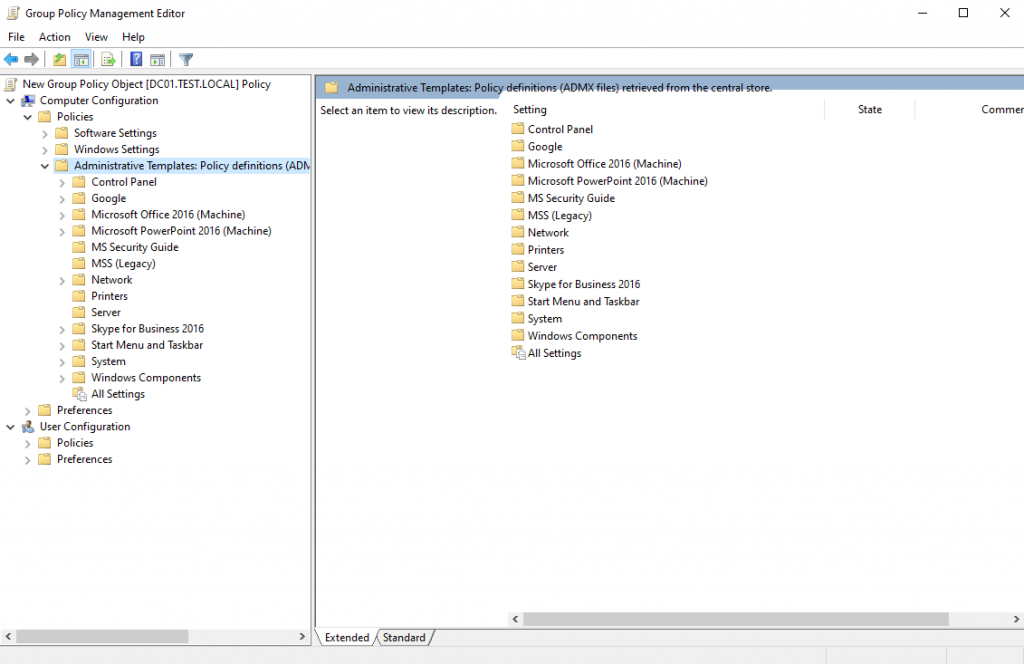
4. Verify the policy appears in GPMC.
A new section will then appear under Administrative Templates.
– Verify that the ADMX version matches the product version.
– Use only official sources.
– Avoid downloading templates from unofficial archives or forums.
ADMX files are part of the centralized security management mechanism. Their authenticity and integrity directly affect the correctness of administration.
Conclusion
Administrative Templates are not merely a supporting component of Group Policy. They are the control point for the visibility of manageable security parameters.
If the Central Store is missing or contains an outdated set of ADMX files, administrators may not see part of the available operating system settings. This creates a risk of incorrect compliance assessment and reduces the quality of hardening.
Before implementing CIS Benchmarks, Security Baselines, or conducting audits, ensure that the Administrative Templates set in use is both up to date and centralized.
Otherwise, you are not evaluating the system itself – you are evaluating only its currently visible templates.
